Short answer: Motion16 is a strong Grok alternative for mobile creators who want a browser-based path from prompt or reference image to edits, comparisons, and image-to-video. Its value is the connected workflow rather than a claim that every model or control is always available on every device. A good choice still depends on your phone, connection, source files, and the type of content you make.
What a good mobile AI workspace should do
On a phone, every unnecessary screen feels expensive. A useful creative workspace keeps the prompt, attachments, model choice, output controls, and send action within reach without covering the media you are reviewing. It should also make it obvious whether you are creating an image, editing one, or asking for a video.
The second requirement is continuity. Mobile creators often begin with a camera-roll image, pause while traveling, and return later. Project history and saved generations matter because a clever prompt is not helpful if the result disappears into a download folder with no context.
A practical phone-first workflow in Motion16
Begin by uploading a clean photo or typing a short visual direction. Choose the image or video path, select a supported model, and keep the first batch small. Once results arrive, open the strongest creation and use it as the source for a focused edit or a motion prompt. This avoids juggling files between several mobile apps.
On a small screen, concise prompts usually beat a wall of text. Put the subject and requested action first, then add two or three details that truly matter. For video, describe camera behavior and subject movement separately. You can refine later after seeing what the model understood.
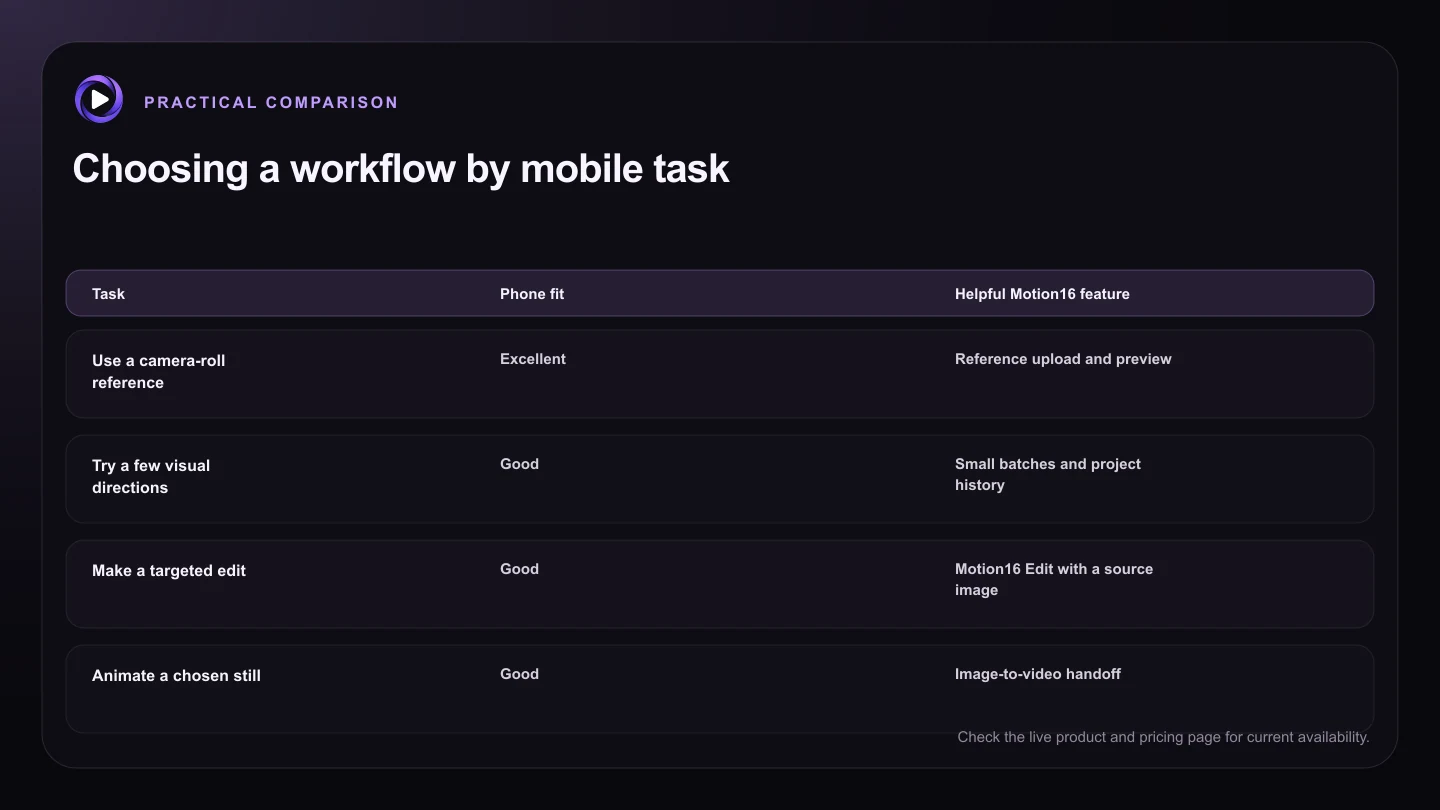
| Task | Phone fit | Helpful Motion16 feature |
|---|---|---|
| Use a camera-roll reference | Excellent | Reference upload and preview |
| Try a few visual directions | Good | Small batches and project history |
| Make a targeted edit | Good | Motion16 Edit with a source image |
| Animate a chosen still | Good | Image-to-video handoff |
| Compare many fine details | Better on a larger screen | Open the same project on desktop |
Design details that matter more on a phone
Tap targets should be large enough to use with one hand, and important controls should not slide off the edge when the keyboard opens. Media should resize without being hidden beneath the composer. Warnings should appear above the interface instead of pushing the whole page around. These details have a bigger impact than decorative animation.
Uploads deserve special attention. A high-resolution camera photo can be large, and a weak connection may make it appear stuck. Wait for the attachment preview, keep the tab open during upload, and avoid sending the same file repeatedly. If a task fails, a considerate app should keep the prompt and attachments available for another attempt.
When a desktop is still the better choice
A phone is excellent for capture, quick iteration, approvals, and social-ready experiments. A desktop remains more comfortable for comparing many variants, examining small visual errors, writing long art direction, or managing a large client library. The goal is not to pretend the screen size makes no difference.
A connected browser workspace lets the two devices complement each other. Start from the phone when the idea arrives, then open the same project on a larger display for detailed comparison. That is more useful than forcing every stage into a mobile-only routine.
Try this next
Before you generate on mobile
- Use a stable connection for large image uploads.
- Wait until every attachment shows a preview.
- Put the main subject and action at the start of the prompt.
- Begin with a small batch to save time and allowance.
- Review faces, hands, text, and edges at full size.
- Keep the project in history before switching devices.
Frequently asked questions
Do I need to install a Motion16 mobile app?
Motion16 is browser-based, so you can use it from a compatible mobile browser without installing a separate native app.
Can I use photos from my phone as references?
Yes, supported workflows accept image references. Wait for the attachment preview before submitting so you know the file is ready.
Can I start on mobile and continue on desktop?
Project history is designed to keep creations connected to your account, which makes it practical to reopen work on another device.
Keep exploring: Read Can I Use a Grok Imagine Alternative Directly in My Browser?, or check the current Motion16 plans and limits.