Short answer: In Motion16, you can generate an image with a supported GPT Image or Grok workflow, refine it with Motion16 Edit if needed, then use that result in a supported Grok image-to-video flow. Motion16 is an independent workspace, so provider availability and limits still apply, but the creative context does not need to be rebuilt in another app.
Generate for motion from the beginning
If you know an image will become a video, compose it with motion in mind. Leave room in the direction of travel, avoid cutting off moving limbs, and make the subject easy to separate from the background.
A still can be beautiful and still be a poor video source. Look for clear anatomy, stable facial detail, and a scene that can tolerate a small camera move without exposing confusing geometry.
Refine the still before asking it to move
Video generation will not reliably repair every flaw in the source. A strange hand, broken sign, or warped product may persist or become more noticeable across several frames. Fix important issues first with a supported edit workflow.
Keep the edit focused. Clean the background, correct a distracting detail, or make room for the intended crop. Then review the image at full size before treating it as ready for motion.
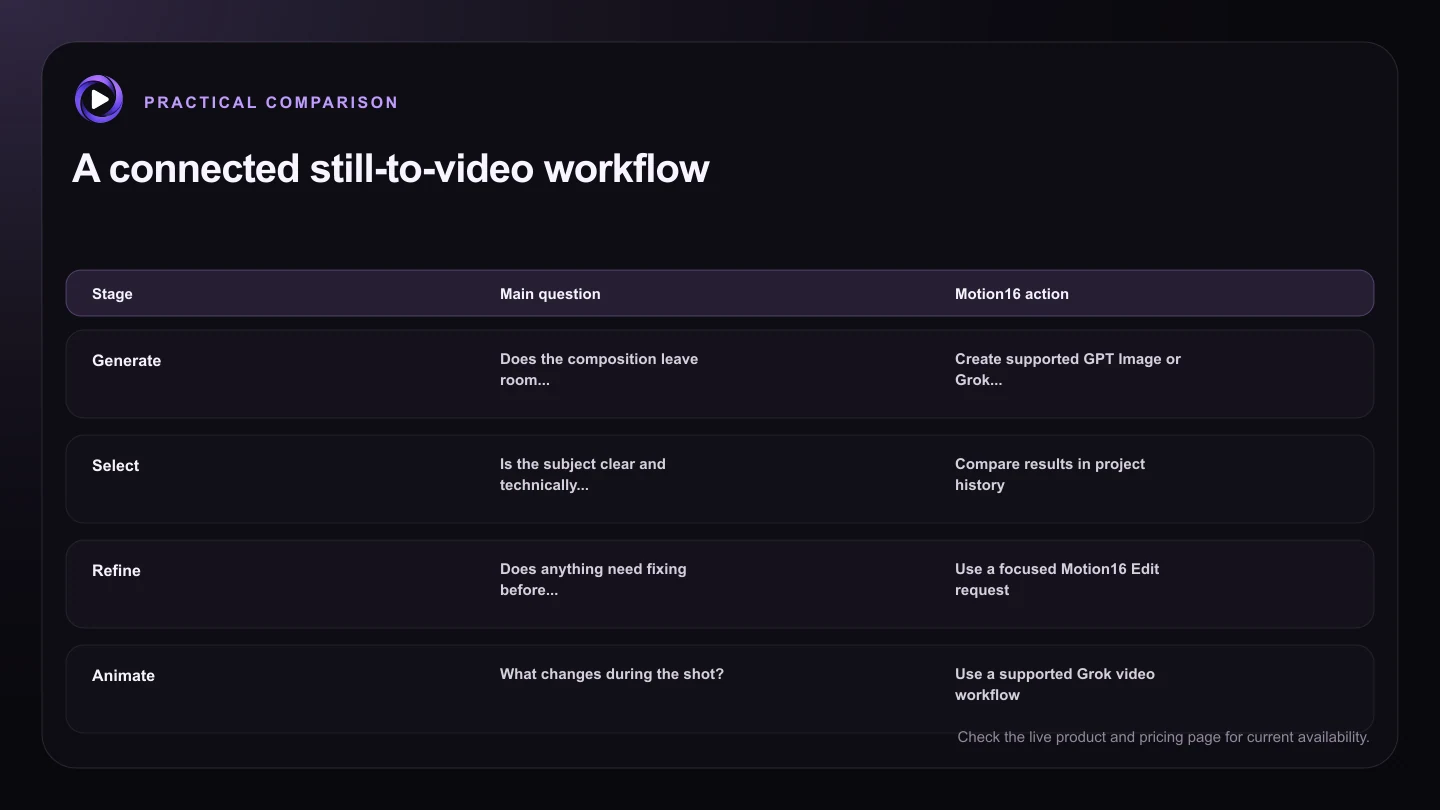
| Stage | Main question | Motion16 action |
|---|---|---|
| Generate | Does the composition leave room for motion? | Create supported GPT Image or Grok candidates |
| Select | Is the subject clear and technically stable? | Compare results in project history |
| Refine | Does anything need fixing before animation? | Use a focused Motion16 Edit request |
| Animate | What changes during the shot? | Use a supported Grok video workflow |
| Review | Did motion preserve the important details? | Compare the clip with its source and retry deliberately |
Switch from image intent to motion intent
The image prompt describes what the scene is. The video prompt should describe what changes. State one subject action, one camera behavior, and the general pace. If the scene is already busy, a locked camera may be the better choice.
Avoid adding new characters, locations, and props unless the shot truly needs them. Every new element asks the model to invent more information while also preserving the source.
Compare the clip with its source
Watch the first and last frames, then replay the middle. Look for face drift, melting objects, sudden background movement, unnatural acceleration, and a crop that changes the visual focus.
Because the source and attempts can remain in the Motion16 project flow, you can decide whether to adjust the motion prompt, return to the still, or choose another image variation. You do not have to guess which file started the clip.
Test before spending your full allowance
Video work can consume more time and provider capacity than a single image. Start with one representative source and the simplest acceptable settings. A short test can reveal whether the composition and motion idea work together.
Current durations, resolutions, queues, and allowances depend on the available provider and plan. Motion16 can make the steps easier to follow, but it cannot guarantee instant processing or permanent access to a particular setting.
Try this next
Before clicking create video
- Choose a still with clear anatomy and space for the intended action.
- Fix important source issues before animation.
- Describe one subject action and one camera behavior.
- Select settings currently supported by the visible video model.
- Review identity, objects, background, crop, and pacing.
- Check live usage and queue information before another attempt.
Frequently asked questions
Do I need to download and upload the image again?
The connected Motion16 workflow is designed to let a supported image result continue into editing or image-to-video without rebuilding the project in another app. Follow the available action on the selected result.
Can every generated image become a video?
A supported video workflow needs to accept the image source, and some stills are better suited to motion than others. Check the current model requirements and review the composition before submitting.
Should I edit the image before making a video?
Edit only if the still has an important flaw or needs a more suitable crop. A clean source usually gives the video workflow a clearer starting point, but unnecessary edits can also introduce new changes.
Keep exploring: Read What Is the Best Grok Imagine Alternative for Image-to-Video Projects?, or check the current Motion16 plans and limits.