Short answer: For creators who want to move from a generated still to a short video, Motion16 is a practical Grok Imagine alternative because it keeps image generation, reference-led editing, project history, and supported Grok video creation together. Motion16 is an independent workspace and is not affiliated with xAI or OpenAI. The best fit still depends on the models, controls, speed, and allowances you need.
Start with the workflow, not the model name
An image-to-video project usually begins before the video prompt. You need a still with a clear subject, useful framing, and enough visual room for the movement you have in mind. If the starting image fights the idea, even a strong video model has to guess what should happen outside the frame.
Motion16 gives that preparation work a home. You can create supported GPT Image or Grok results, refine a chosen image with Motion16 Edit, and then use the image as the visual source for a supported video workflow. The point is continuity, not a claim that one provider wins every prompt.
Choose a still that can actually move
Look for a subject with readable limbs, a stable face, and a background that will not collapse when the camera shifts. A dramatic still may look impressive in isolation but become awkward if hands are cropped, props blend together, or the subject is pressed against every edge.
Generate a few distinct candidates instead of asking for tiny variations of the same composition. A waist-up shot, a wider environmental frame, and a close portrait give you genuinely different motion options. Keep the prompt visible so you can remember why each version exists.
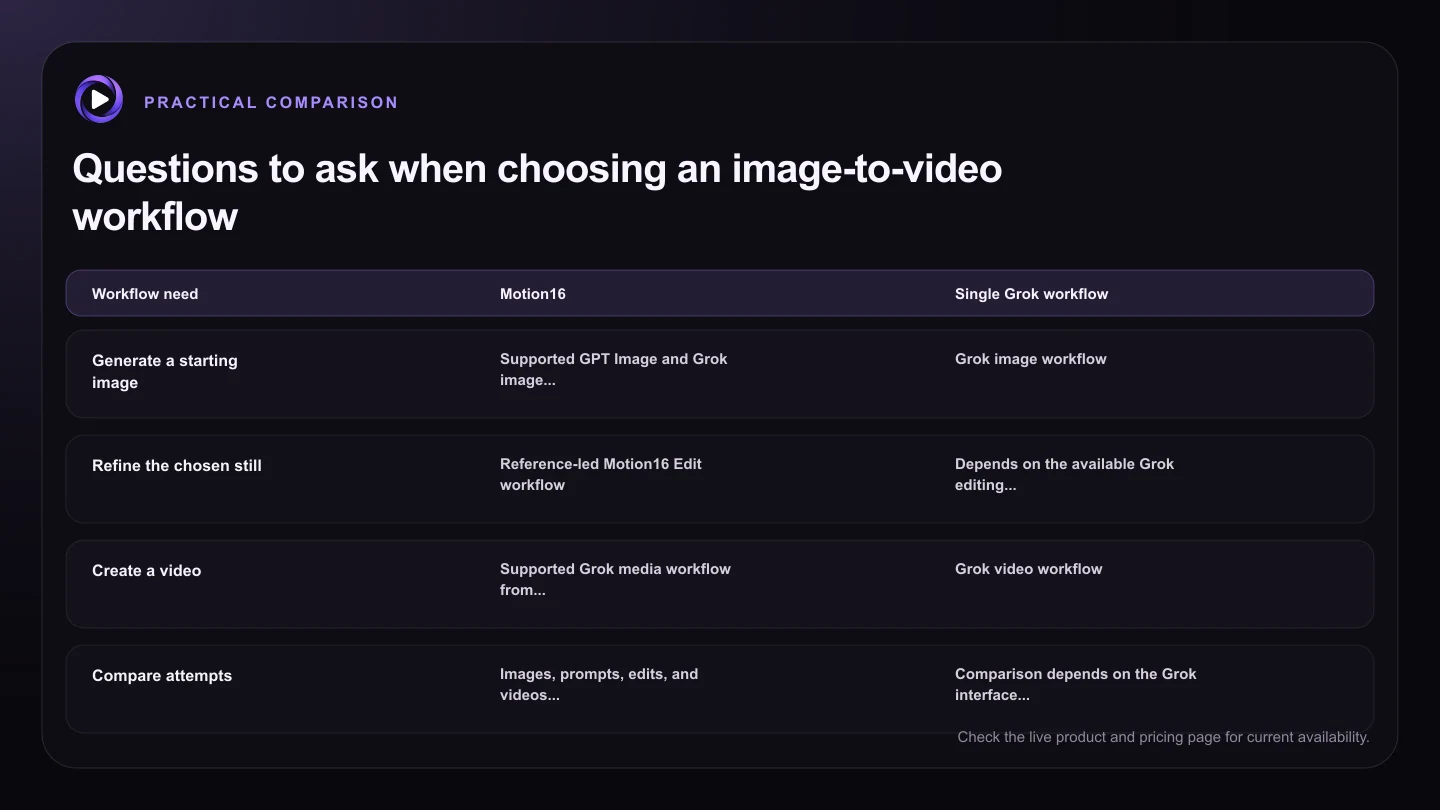
| Workflow need | Motion16 | Single Grok workflow |
|---|---|---|
| Generate a starting image | Supported GPT Image and Grok image choices | Grok image workflow |
| Refine the chosen still | Reference-led Motion16 Edit workflow | Depends on the available Grok editing flow |
| Create a video | Supported Grok media workflow from the project | Grok video workflow |
| Compare attempts | Images, prompts, edits, and videos in project history | Comparison depends on the Grok interface and saved history |
| Provider guarantees | No guarantee of availability or identical results | Subject to Grok availability and limits |
Describe motion instead of rewriting the picture
Once the source image is selected, the video prompt should focus on change. Name the subject action, camera behavior, pace, and any element that should remain steady. A prompt such as 'she turns toward the window while the camera slowly pushes in' is easier to interpret than a second long description of her clothing and the room.
Short prompts are often easier to debug. If an attempt drifts, change one variable at a time. Reduce the camera movement, simplify the action, or choose a source with more space. That makes the next attempt informative instead of random.
Keep the attempts close enough to compare
A disconnected download folder makes comparison harder than it should be. File names do not tell you which prompt, source image, duration, or aspect ratio produced a clip. Project history is valuable because it keeps those decisions near the result.
In Motion16, the image and related video attempts can stay within the same creative flow. You can return to the source, try a more restrained prompt, or animate a different variation without rebuilding the context from memory.
Check availability before planning a large run
Provider access, queue speed, supported resolutions, and usage allowances can change. A workflow that feels fast during a quiet test may behave differently when a provider is busy or when a plan limit is close.
Run one short representative clip before committing to a large batch. Confirm that the available model supports the source type and settings you want, then review the result at full size. Motion16 can organize the workflow, but it cannot guarantee provider availability or identical output on every attempt.
Try this next
A quick image-to-video test
- Choose a source image with clear anatomy and useful space around the subject.
- Write one visible action and one camera instruction.
- Keep the first test short and use a supported aspect ratio.
- Review face stability, hand motion, background motion, and framing.
- Change only one major variable before the next attempt.
- Confirm current provider limits before starting a larger batch.
Frequently asked questions
Does Motion16 replace Grok's video model?
No. Motion16 is an independent workspace that can provide a supported Grok media workflow alongside image generation, editing, and project history. Model access still depends on current provider availability and your plan.
Can I animate an image made with GPT Image?
If the selected Motion16 video workflow accepts that image as a source, you can carry a supported GPT Image result into the image-to-video flow. Check the visible model options and source requirements before submitting.
Why does my video look different from the source image?
Video generation has to invent new frames, so some drift is possible. Use a clean source, ask for simpler motion, avoid conflicting camera directions, and compare another attempt with only one prompt change.
Keep exploring: Read How Do You Turn a Generated Image Into a Video Without Changing Apps?, or check the current Motion16 plans and limits.