Short answer: Motion16 is a strong Grok alternative for social media creators who want to generate stills, compare batches, adapt references, make targeted edits, and turn a selected image into a short video in one workspace. It is most useful when you build from a clear campaign idea and review every output before publishing. Platform formats and model availability can change, so confirm current requirements and account access as part of your workflow.
Start with a content idea, not a model name
A week of social posts becomes easier when the core idea is clear. Write down the audience, the one thing they should notice, and the feeling the creative should leave behind. Then decide whether the first asset should be a product still, a character-led scene, an educational graphic, or a motion hook. The model is a production choice, not the strategy.
Keep the first prompt simple enough to steer. A useful starting brief might name the subject, setting, visual mood, camera framing, and empty space needed for copy. Generate a small batch, pick one direction, and refine it. This produces a more coherent series than asking for ten unrelated posts in one oversized prompt.
Turn one winning direction into a content family
Once an image has the right look, use it as a visual anchor. Create a close crop for a feed post, a taller composition for a story, and a simpler version that leaves room for a headline. Motion16 keeps those attempts in project history, so you can compare them without forgetting which source or prompt started the set.
Not every adaptation needs a fresh generation. Motion16 Edit is useful for a focused change such as swapping a background tone, removing a distracting object, or making room beside the subject. When the still feels settled, image-to-video can test a subtle camera move or subject action for a short clip.
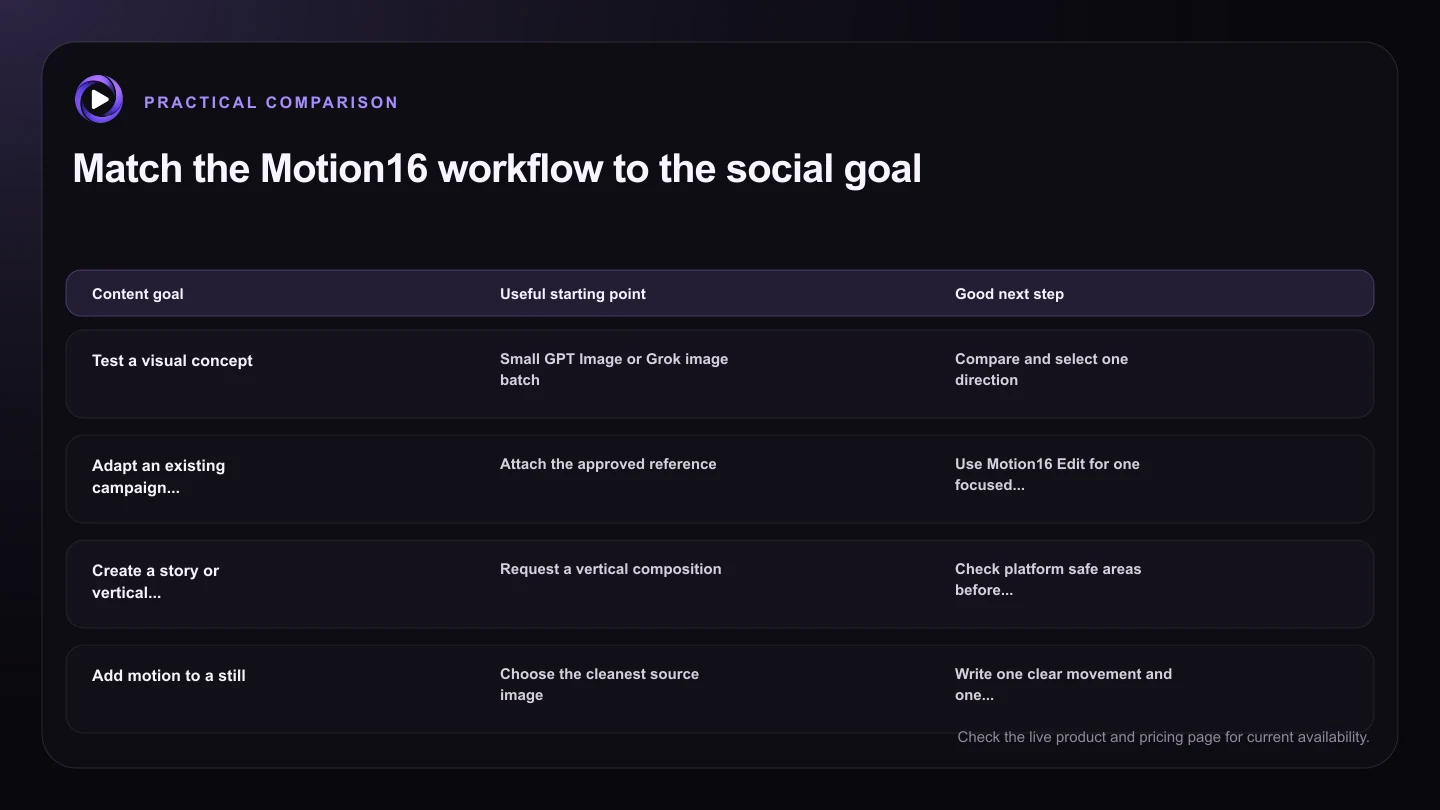
| Content goal | Useful starting point | Good next step |
|---|---|---|
| Test a visual concept | Small GPT Image or Grok image batch | Compare and select one direction |
| Adapt an existing campaign still | Attach the approved reference | Use Motion16 Edit for one focused change |
| Create a story or vertical post | Request a vertical composition | Check platform safe areas before export |
| Add motion to a still | Choose the cleanest source image | Write one clear movement and one camera instruction |
| Build a recurring series | Reuse the visual brief | Keep variations together in project history |
Design for the feed without chasing every trend
Trends can help a post feel current, but copying a visual gimmick rarely creates a durable brand. Use trends as a format prompt, then bring your own product, palette, point of view, and voice. A recognizable series is more valuable than a set of images that could belong to anyone.
Leave room for the interface that surrounds the media. Captions, buttons, usernames, and crops can cover important details. Check the latest specifications for each platform before export because recommended dimensions and safe areas can change. Keep a clean master image so you can make new crops later without starting over.
Review AI social assets like a publisher
Before posting, zoom in. Check hands, faces, logos, packaging, signs, reflections, and any text that the model tried to draw. Confirm that the image does not imply a product feature or event that is untrue. If a real person, trademark, or customer claim is involved, follow the permissions and review process your organization requires.
Then review the set as a whole. Does every post look identical, or do they feel related while doing different jobs? Is the motion calm enough to keep the subject readable? A short quality pass protects the account from obvious mistakes and usually reveals which asset deserves the strongest caption.
Try this next
Social asset preflight
- Define the audience and purpose of this specific post.
- Keep a clean master before adding platform text or crops.
- Check the latest platform dimensions and safe areas.
- Inspect faces, hands, products, logos, and generated text.
- Confirm that visual claims match the real offer.
- Preview the asset on an actual phone before publishing.
Frequently asked questions
Can Motion16 make several social variations at once?
Supported image workflows can create batches, which helps you compare a few directions. Keep batches purposeful so review does not become harder than creation.
Can I turn a social image into a video in the same project?
Yes, supported image-to-video workflows can use a chosen still as the source. Describe simple motion first, then refine after seeing how the source behaves.
Will Motion16 automatically choose the correct platform size?
You can choose supported ratios, but platform requirements change and placement can vary. Confirm the latest specification and preview the final crop before posting.
Keep exploring: Read What Is the Best Grok Alternative for Marketing Campaigns?, or check the current Motion16 plans and limits.