Short answer: Motion16 is a useful Grok alternative for product visual development because it connects reference images, supported GPT Image and Grok media generation, Motion16 Edit, batches, project history, and image-to-video. It works best for concepts, backgrounds, campaign variations, and motion studies. It should not replace an accuracy review when packaging, dimensions, colors, labels, or regulated claims must match the item exactly.
Begin with a source image the model can understand
A clean reference makes almost every later step easier. Photograph the product in even light with sharp edges, a visible silhouette, and as little lens distortion as possible. If the front, side, or cap matters, include useful views. A cluttered phone photo can still inspire a concept, but it gives the model more opportunities to guess.
Decide what must remain exact before you prompt. It may be the bottle shape, a material finish, a logo position, or a signature color. State those constraints plainly, then describe the environment you want to change. Asking for a new scene while preserving a short list of important details is clearer than repeatedly saying to keep everything identical.
Use generation for direction and editing for control
Generation is excellent for exploring worlds around the product. You can test a clean studio setup, a warm kitchen, a dramatic night scene, or a seasonal color story. Small batches help compare lighting and composition before you spend time perfecting one image.
When a result is close, move to a focused edit instead of restarting. Motion16 Edit can be used to request a specific change, such as replacing the surface, softening a reflection, or adding breathing room for copy. Review the edited product against the original reference after every meaningful change because small details can drift.
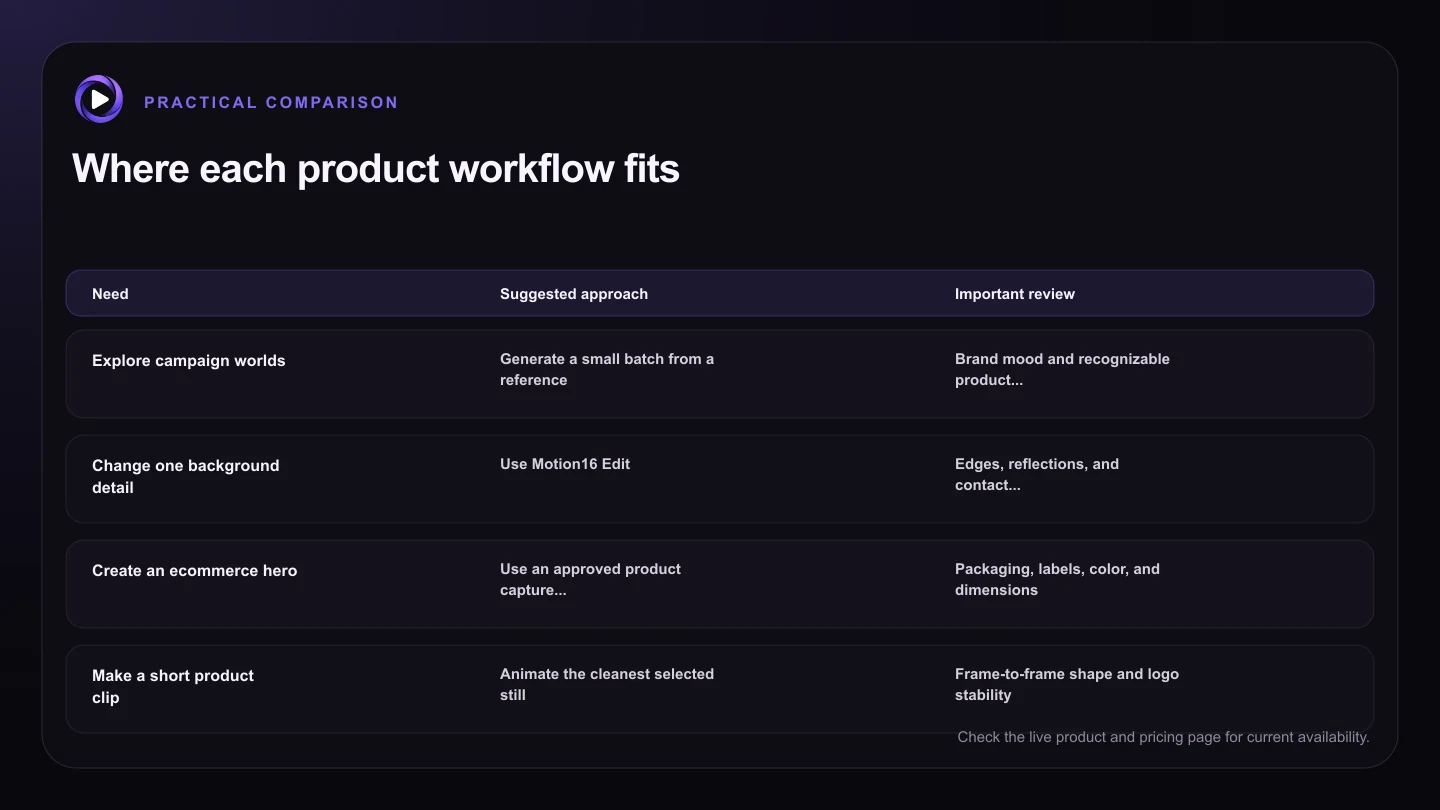
| Need | Suggested approach | Important review |
|---|---|---|
| Explore campaign worlds | Generate a small batch from a reference | Brand mood and recognizable product shape |
| Change one background detail | Use Motion16 Edit | Edges, reflections, and contact shadows |
| Create an ecommerce hero | Use an approved product capture when exactness is essential | Packaging, labels, color, and dimensions |
| Make a short product clip | Animate the cleanest selected still | Frame-to-frame shape and logo stability |
| Compare creative routes | Keep versions in one project | Choose by the brief, not novelty alone |
Know where AI product images need human checking
Models can redraw tiny labels, invent text, change the number of parts, or smooth away a functional detail. Reflective containers and transparent materials are especially demanding because a convincing highlight can still describe the wrong geometry. Zoom in and compare the output beside a real product photo.
For a final ecommerce listing, accuracy is often more important than drama. Consider using AI for backgrounds and campaign concepts while retaining an approved product cutout or a professionally captured hero image. The right balance depends on how closely the visual must represent what the customer receives.
Add motion without losing the product
A short video can bring a still concept to life with a slow camera push, a gentle turntable move, moving light, or subtle environmental motion. Start with the most accurate still you have. Simple motion gives the model less reason to reshape the product from frame to frame.
Describe the product as stable, then state one camera action and one environmental action. Review several points in the clip, not only the opening frame. If the logo warps or the silhouette changes, reduce the movement, simplify the scene, or return to a cleaner source image.
Try this next
Product accuracy checklist
- Use a sharp, evenly lit product reference.
- List the product details that must not change.
- Generate small batches before refining a direction.
- Compare every final candidate with the real item.
- Inspect labels, logos, materials, parts, and reflections.
- Use simple motion when animating branded products.
Frequently asked questions
Can Motion16 keep my product exactly unchanged?
No generative workflow should be assumed to preserve every detail perfectly. References and focused edits can improve control, but final product visuals still need an accuracy review.
Is AI suitable for ecommerce product pages?
It can help with backgrounds and supporting visuals. When the image must precisely represent the purchased item, use an approved product capture or carefully verified composite.
Can I animate a product photo with Grok video?
Supported Grok media workflows can create video from a source image. Start with restrained camera and environmental movement, then inspect product stability throughout the clip.
Keep exploring: Read What Is the Best Grok Alternative for Marketing Campaigns?, or check the current Motion16 plans and limits.