Short answer: Motion16 supports reference-led creative workflows, including supported GPT Image generation, Grok media, Motion16 Edit, and image-to-video. A reference can help anchor a subject, product, composition, or edit, but it does not guarantee exact identity or pixel-perfect preservation. Use images you have permission to use, and review the requirements shown for the selected model.
Decide what each reference is supposed to do
Before attaching anything, write down the role of each image. One might define the person, another might show the desired lighting, and a third might demonstrate the framing. When every reference is treated as equally important, the model has to guess which details matter most.
A plain instruction helps. Try 'keep the jacket and face from image one, use the seated composition from image two' instead of simply attaching both files. If a selected model only accepts one source, choose the reference that carries the most important information.
Use a clean source whenever possible
A reference with good lighting, a visible subject, and little compression gives the model clearer evidence. Tiny screenshots, collages, heavy filters, and obstructed faces introduce ambiguity before the prompt even begins.
Crop away unrelated interface elements and check the orientation before uploading. If the product or person appears very small in the frame, a closer source may work better than a longer prompt that asks the model to infer missing detail.
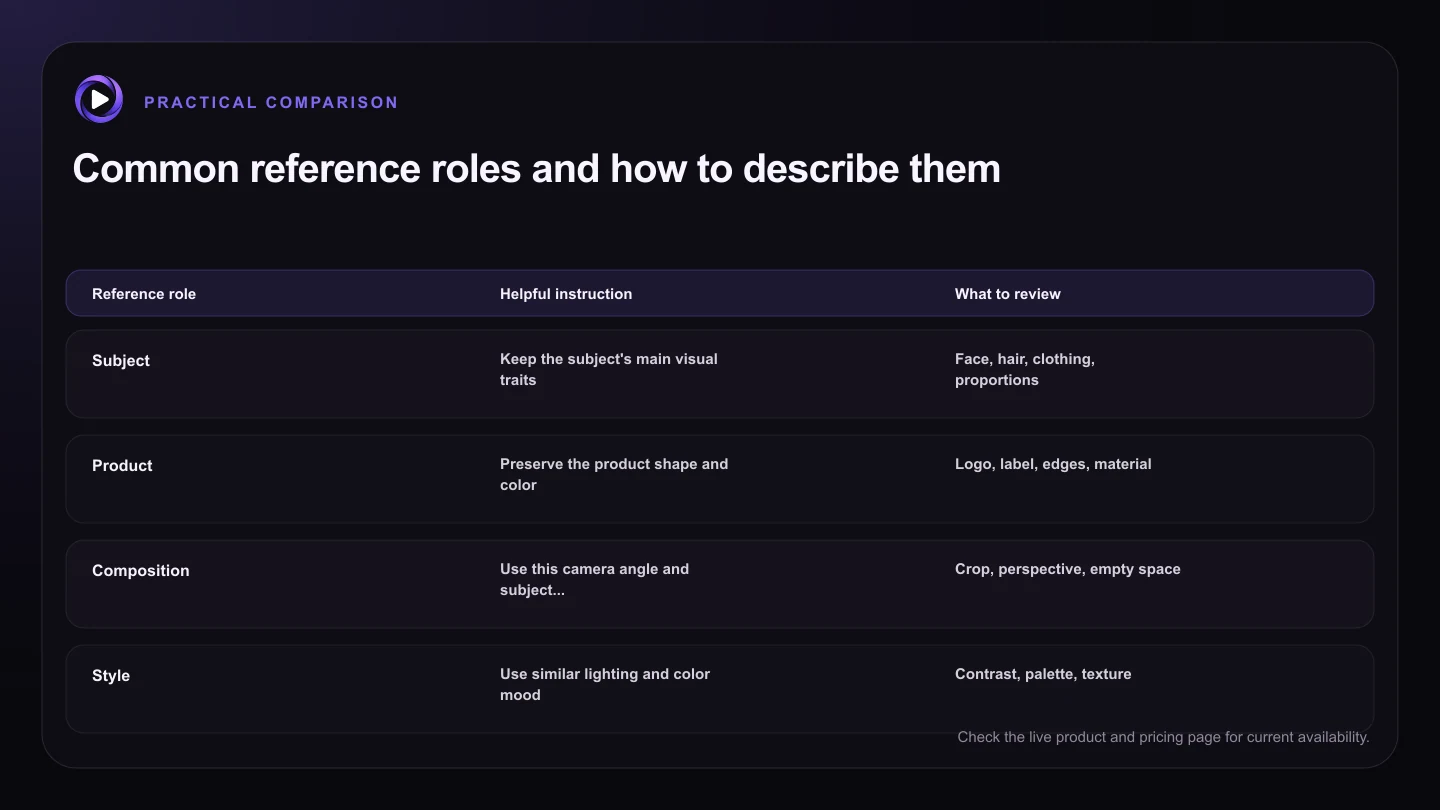
| Reference role | Helpful instruction | What to review |
|---|---|---|
| Subject | Keep the subject's main visual traits | Face, hair, clothing, proportions |
| Product | Preserve the product shape and color | Logo, label, edges, material |
| Composition | Use this camera angle and subject placement | Crop, perspective, empty space |
| Style | Use similar lighting and color mood | Contrast, palette, texture |
| Video source | Animate this still with one clear action | Identity drift, background motion, framing |
Match the model to the job
Reference support is not identical across image generation, image editing, and video creation. A model that accepts several images for generation may accept one source for editing or video. The controls shown in Motion16 should be treated as the current source of truth for that workflow.
Motion16 Edit is useful when the goal is to change an existing image while keeping the source in view. Supported GPT Image and Grok workflows can serve different creative needs. Test the smallest meaningful request before attaching a large collection of references.
Make changes in clear stages
If you need a new outfit, a different room, a wider crop, and a new facial expression, asking for everything at once makes failure hard to diagnose. Begin with the change that matters most, inspect the output, and use the better result as the next source.
Project history makes this staged approach less tedious. The source, prompt, and related results stay easier to trace, so you can return to an earlier version if a later edit loses something important.
Treat likeness as a goal, not a promise
Reference images can improve consistency, but generative models still reinterpret details. Faces, logos, text, hands, and small accessories deserve a close review. Exact duplication may not be possible or appropriate for every source and model.
Use only images you are allowed to upload, especially when real people or protected brand assets are involved. Motion16 organizes supported model workflows, but it does not remove the need for consent, rights checks, and a careful final review.
Try this next
Before attaching a reference
- Confirm that you have permission to use the image.
- Choose a sharp source where the important subject is easy to see.
- Give every attached image a clear role in the prompt.
- Check how many sources the selected model and mode accept.
- Request one major change at a time when accuracy matters.
- Inspect faces, text, logos, hands, and small details at full size.
Frequently asked questions
How many reference images can I use in Motion16?
It depends on the selected model and mode. The composer should show the options currently supported. Some image workflows can accept multiple references, while an edit or video workflow may require one source.
Will a reference preserve the same face exactly?
Not necessarily. A strong, clear source and a focused prompt can improve consistency, but generative results may still change facial details. Review every output before using it.
Can I use one generated result as the next reference?
Yes, when the selected workflow supports it. This staged method is often easier to control because each request has one clear goal and each successful result can become the next source.
Keep exploring: Read What Is the Best Grok Alternative for Editing Existing Images?, or check the current Motion16 plans and limits.