Short answer: Motion16 is a useful Grok alternative for existing-image workflows because Motion16 Edit sits alongside supported GPT Image and Grok media options, references, and project history. It is designed for clear, source-led changes and continued creative work, but no generative editor can promise perfect preservation of every detail.
Separate the change from the constraints
A strong edit prompt has two jobs. It states what should change, then names the details that matter enough to preserve. 'Replace the gray wall with warm wood paneling; keep the person, pose, clothing, and crop unchanged' is clearer than a full scene description written from scratch.
Do not list every visible pixel as a constraint. Focus on the identity, product detail, composition, or text placement that the final use actually depends on. Too many instructions can compete with the edit itself.
Make one meaningful edit at a time
A request to change the outfit, time of day, room, lens, expression, and camera angle is closer to a new generation than a controlled edit. If accuracy matters, begin with the highest-priority change and review the output.
The next request can build on the best version. This staged method may take more clicks, but it gives you a clear point to return to when an edit damages something that was already working.
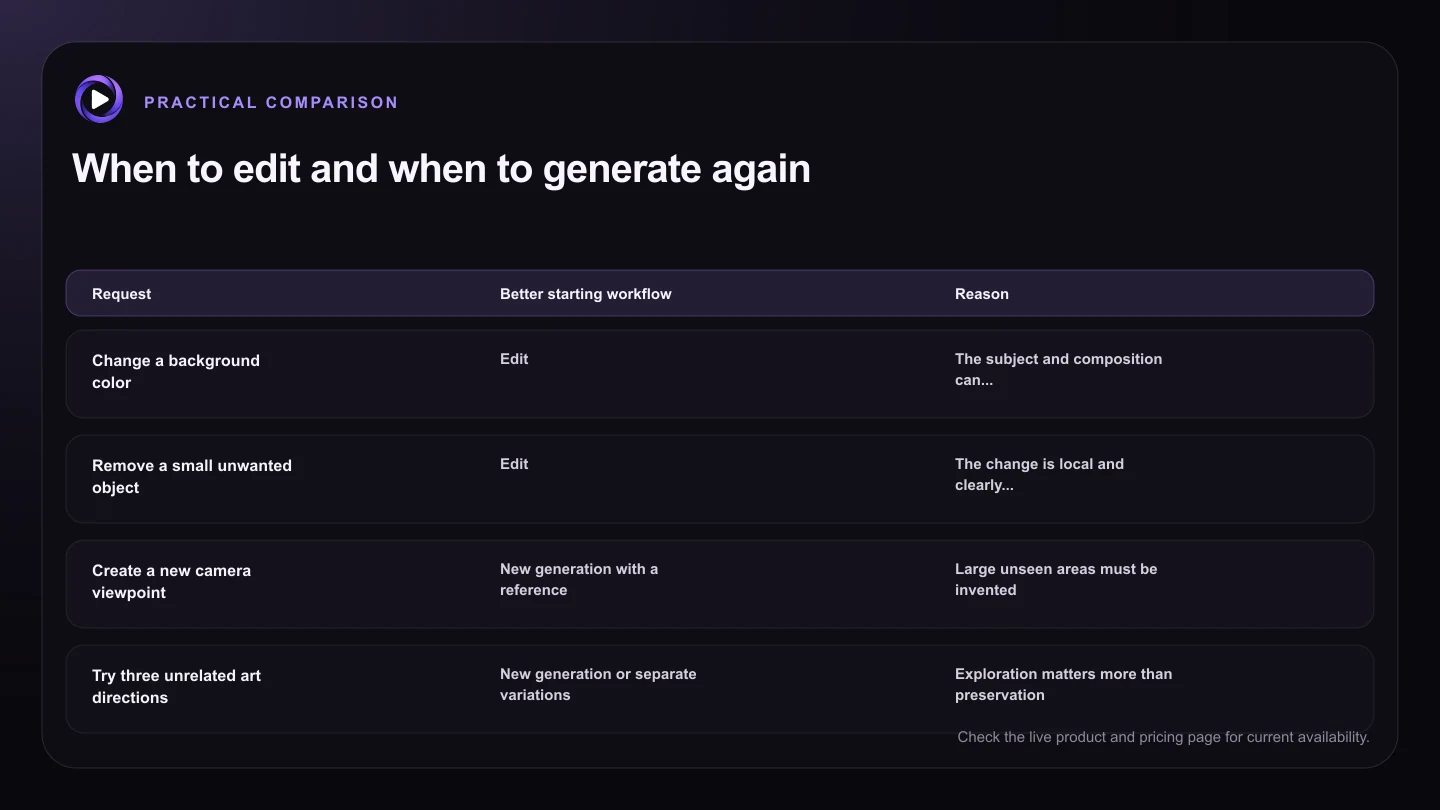
| Request | Better starting workflow | Reason |
|---|---|---|
| Change a background color | Edit | The subject and composition can stay stable |
| Remove a small unwanted object | Edit | The change is local and clearly described |
| Create a new camera viewpoint | New generation with a reference | Large unseen areas must be invented |
| Try three unrelated art directions | New generation or separate variations | Exploration matters more than preservation |
| Prepare a selected still for video | Edit, review, then animate | A cleaner source can improve the next stage |
Choose a source that supports the request
The editor cannot reliably preserve details that are blurred, hidden, or too small to read. Use the highest-quality source you are allowed to use, and avoid screenshots that include browser controls or messaging overlays.
If you need a wider crop, remember that the model must invent what exists beyond the original frame. Treat that as a creative reconstruction, then inspect edges, hands, clothing, reflections, and repeated background patterns.
Compare versions in context
An edit can look attractive while quietly losing the reason you chose the source. Compare the face, product geometry, brand colors, crop, and lighting with the original before deciding that the new version is better.
Motion16 project history keeps the source and resulting work easier to revisit. If the edit is meant for motion, you can select the stronger version before moving into a supported image-to-video workflow.
Know when to regenerate instead
Some requests ask the image to become something fundamentally different. A new viewpoint, a different body position, or an entirely new environment may work better as a fresh generation guided by the original reference.
Use editing when preservation is central. Use generation when exploration matters more. Motion16 puts both types of work near each other, so choosing the workflow does not have to mean abandoning the project context.
Try this next
A cleaner edit request
- Use a sharp source that you have permission to edit.
- Describe the single most important change first.
- Name only the details that truly need to stay stable.
- Review the output beside the source at full size.
- Continue from the best version instead of stacking changes blindly.
- Regenerate when the requested viewpoint or composition is fundamentally new.
Frequently asked questions
What is Motion16 Edit?
Motion16 Edit is the workspace's reference-led image editing workflow. It is available alongside supported GPT Image and Grok media options so an edited still can remain part of the same project.
Can Motion16 Edit preserve everything outside the requested change?
No generative editor can guarantee that. A focused prompt and a clear source can improve control, but you should still compare identity, text, products, hands, and background details with the original.
Can I make a video from an edited image?
Yes, when a supported video workflow is available and accepts the edited result as its source. Review the still first because any existing issue may become more visible in motion.
Keep exploring: Read Can I Use Reference Images in a Grok Imagine Alternative?, or check the current Motion16 plans and limits.