Short answer: Motion16 offers an independent workspace with supported GPT Image and Grok media choices, Motion16 Edit, reference-led workflows, batch comparison, project history, and a connected path from still images to supported video creation. Grok's native features can change, so this is a workflow comparison rather than a claim that a specific control never exists in Grok.
A choice of supported image workflows
A single creative brief can benefit from different model behavior. Motion16 can present supported GPT Image and Grok image options in one composer, so you can select a workflow based on the task rather than switching apps and rebuilding the prompt.
That choice should stay purposeful. Use the same brief and comparable settings when evaluating models, and judge the result against your real use case. Motion16 does not claim that one provider is best for everything.
Motion16 Edit for source-led changes
When a generated or uploaded image is close but not finished, a focused edit is often more useful than starting over. Motion16 Edit supports reference-led requests that name the change and the details worth preserving.
Generative editing can still alter unexpected areas, so compare the result with the source. The advantage is that the edit remains part of the same project flow and can lead into another edit or supported video attempt.
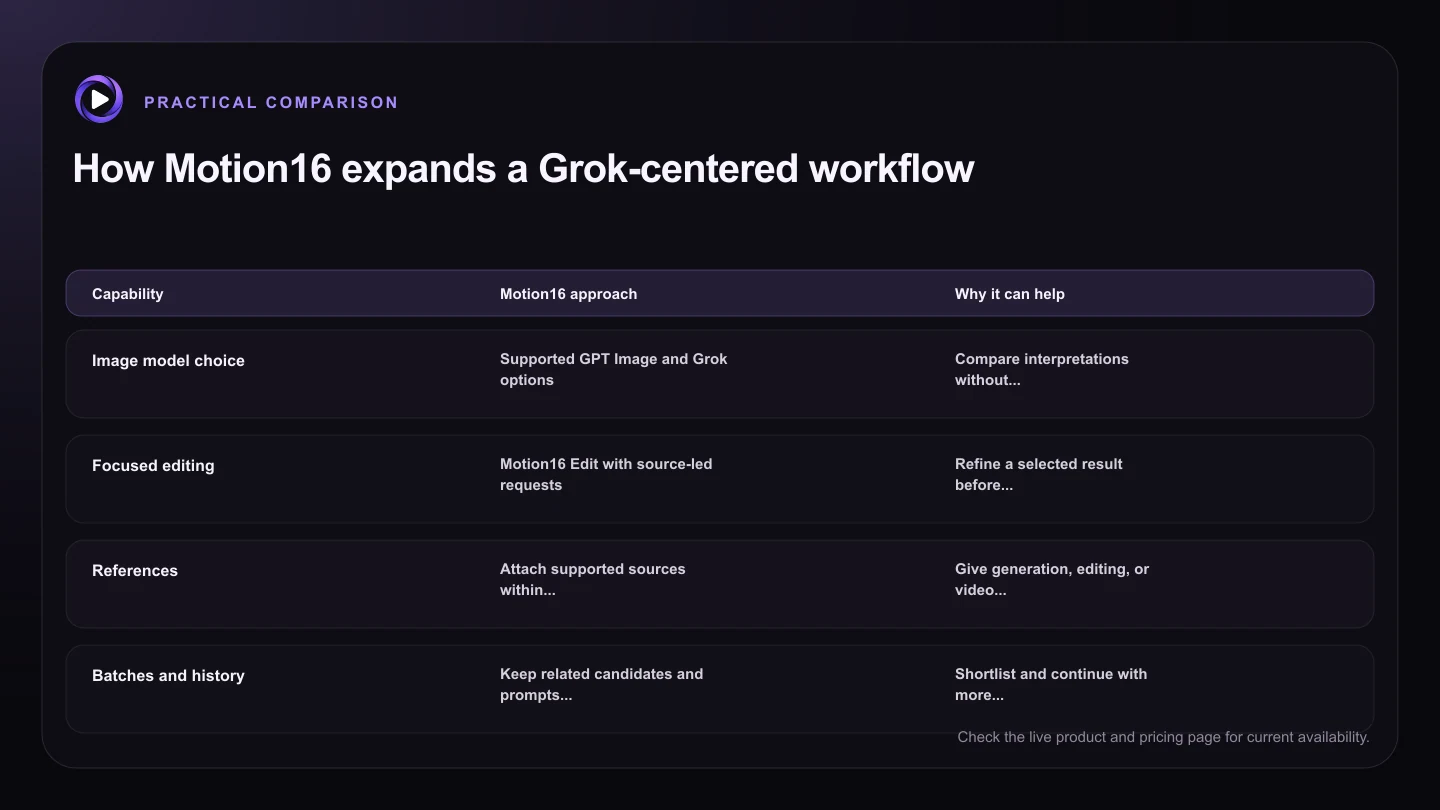
| Capability | Motion16 approach | Why it can help |
|---|---|---|
| Image model choice | Supported GPT Image and Grok options | Compare interpretations without rebuilding the project |
| Focused editing | Motion16 Edit with source-led requests | Refine a selected result before starting over |
| References | Attach supported sources within the composer | Give generation, editing, or video a visual starting point |
| Batches and history | Keep related candidates and prompts in the project | Shortlist and continue with more context |
| Image-to-video | Use a selected still in a supported Grok video flow | Reduce manual download and upload handoffs |
Batches that remain connected to the prompt
Several outputs help when you are choosing a composition, expression, or campaign direction. Motion16 supports batch-oriented workflows that keep candidates visible with the project rather than treating every result as an isolated download.
Available batch size depends on the selected model, plan, queue, and provider capacity. Use batches to answer a creative question, then shortlist before spending time on editing or animation.
Project history across creative stages
The prompt that made a still, the reference used for an edit, and the image that became a video are all useful context. Motion16 is designed to keep those relationships easier to trace inside one workspace.
This is especially helpful when a project returns after several days. Instead of searching through downloads, you can revisit the related result and continue from a known source. Keep final approved assets in your normal backup system as well.
A connected route from image to video
A selected image can become the source for a supported Grok image-to-video workflow without moving the entire creative process into a separate app. The still, motion prompt, and result can remain part of the project story.
The underlying video provider still determines available durations, resolutions, processing, and limits. Motion16 improves the handoff and organization, but it does not guarantee provider access or a perfect clip from every source.
Try this next
Features to test for yourself
- Run one representative prompt with each available image workflow.
- Attach a clear reference and state its role.
- Generate a small batch with one shared creative question.
- Use Motion16 Edit for one focused change.
- Continue a suitable still into a supported video workflow.
- Check how clearly project history connects each stage.
Frequently asked questions
Does Motion16 include its own image editing workflow?
Yes. Motion16 Edit supports reference-led image changes within the workspace. Results still need review because generative editing cannot guarantee that every unmentioned detail stays identical.
Can Motion16 compare GPT Image and Grok results?
Motion16 provides supported GPT Image and Grok image choices in the same workspace. Run comparable prompts and settings, then judge each result against your specific brief.
Are Motion16 features always available without limits?
No. Model access, provider availability, plan allowances, queues, storage, duration, and resolution can change. Use the live interface and current plan information as the source of truth.
Keep exploring: Read Is Motion16 Better Than Using Grok Imagine Alone?, or check the current Motion16 plans and limits.