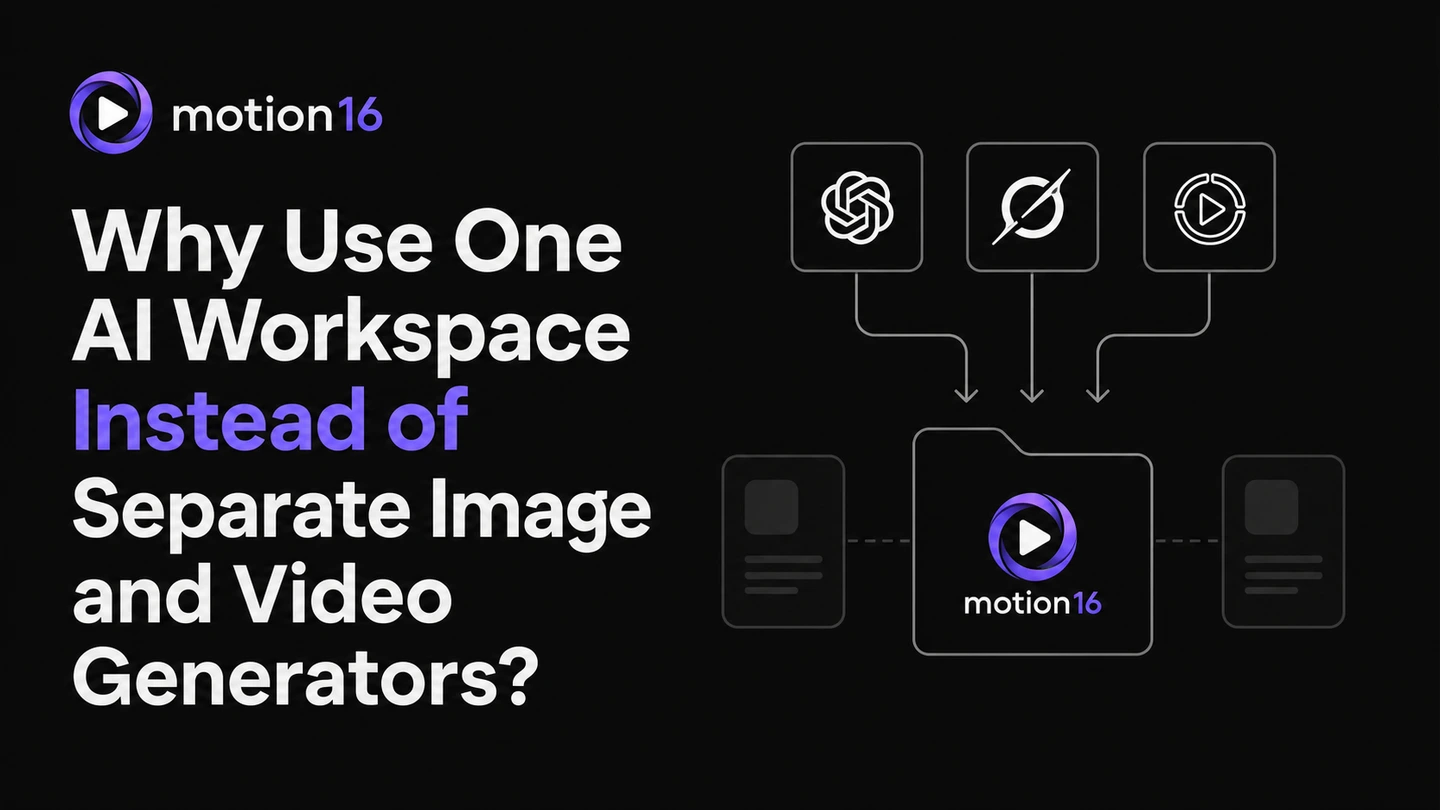
Short answer: One connected workspace reduces file shuffling and preserves the relationship between prompts, references, generated images, edits, and video outputs. That makes comparison, handoff, and revision easier. Motion16 brings supported GPT Image, Grok media, and Motion16 Edit workflows into a shared project history. Separate specialist tools can still make sense for a unique feature, but the core project benefits from one organized home.
Creative context survives the handoff
When image and video tools are separate, the selected image often arrives in the next app as an anonymous download. The prompt, rejected alternatives, reference images, and reason for choosing it stay behind. If the video misses the intended direction, someone has to reconstruct that context from memory.
A connected project keeps the source and its history visible. The team can see which prompt created the frame, what changed in an edit, and which image became the video source. That context makes feedback more specific and helps avoid repeating work.
You spend less time moving and renaming files
Downloading, renaming, uploading, and matching files seems minor until a project has several batches and revisions. Names such as final-3-new-real-final.png do not explain which prompt, crop, or model produced the image. Manual folders also drift away from the generation history.
Motion16 keeps eligible media in project history and lets supported workflows continue from an existing result. You still download final assets when needed, but routine iteration does not require a new transfer at every stage. The benefit grows when a team revisits an older direction.
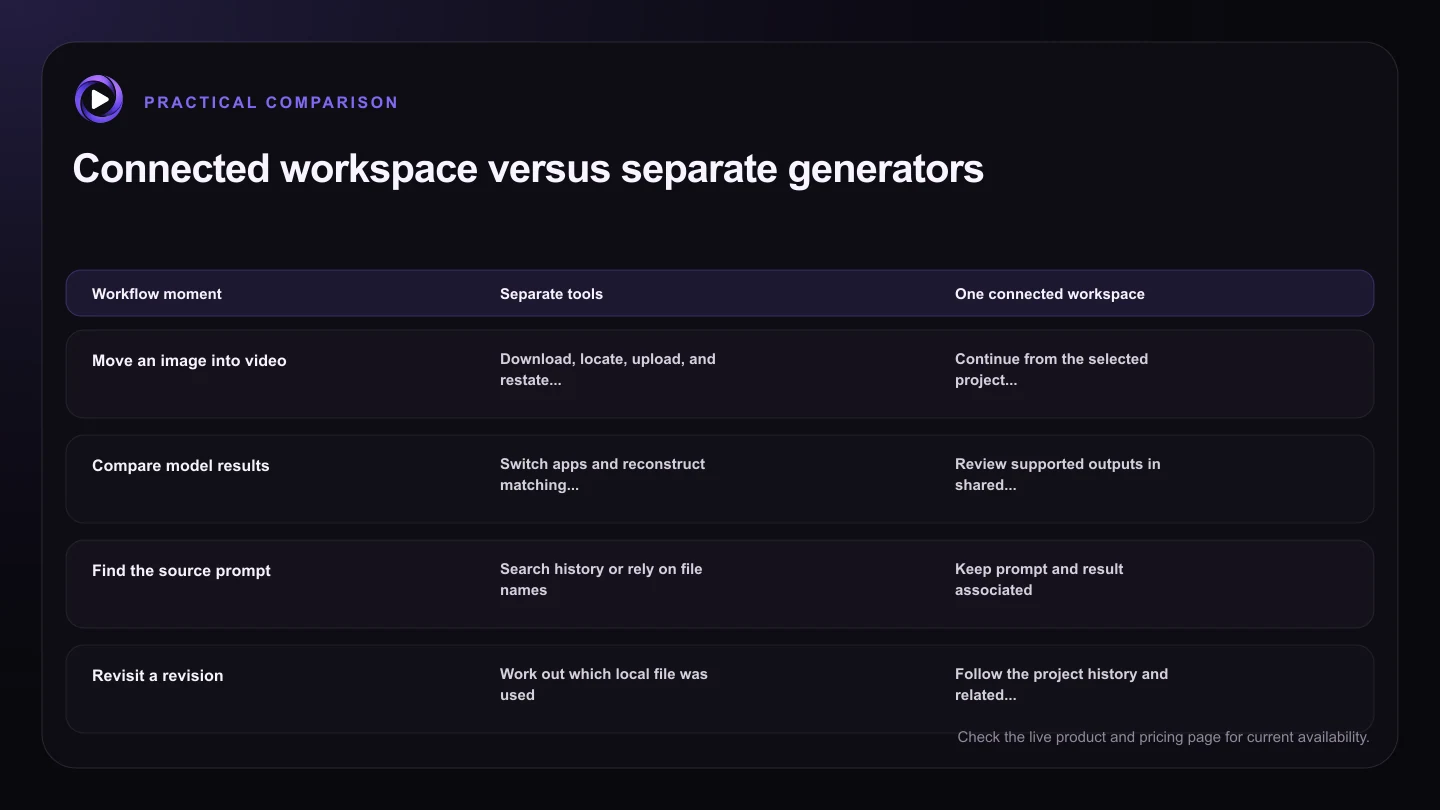
| Workflow moment | Separate tools | One connected workspace |
|---|---|---|
| Move an image into video | Download, locate, upload, and restate intent | Continue from the selected project image |
| Compare model results | Switch apps and reconstruct matching settings | Review supported outputs in shared project context |
| Find the source prompt | Search history or rely on file names | Keep prompt and result associated |
| Revisit a revision | Work out which local file was used | Follow the project history and related outputs |
| Use a specialist feature | Native access but more handoff work | Leave deliberately, then retain a central project record |
Side-by-side model decisions become easier
Separate apps encourage separate reviews. One person remembers the strongest GPT Image result while another remembers a Grok image from a different tab. Without a shared view, the decision can turn into a debate about tools instead of a comparison of outputs.
A common project lets you review supported model results against the same brief. Compare composition, detail, reference fit, and readiness for the next step. The winning model can change by project, and that is easier to accept when the evidence sits together.
Revision becomes a chain instead of a restart
A typical media project is not prompt, result, done. It may involve generating directions, selecting one, changing a detail, testing motion, adjusting the prompt, and exporting a clip. Every disconnected handoff creates a chance to choose the wrong source or lose the successful settings.
Motion16 connects generation, reference-led work, editing, comparison, and supported image-to-video creation in one browser workspace. Each provider still has its own behavior, availability, and allowances. The workspace does not erase those differences, but it gives the project one continuous structure.
Specialist tools still have a place
One workspace does not need to replace every creative application. A specialist editor, compositor, audio tool, or provider may offer a feature your project specifically needs. Use it when the advantage is clear rather than forcing every stage through one interface.
The practical pattern is to keep the project source of truth in one place, then use specialist tools for deliberate exceptions. Bring the final asset or decision back into the shared workflow when possible. Motion16 is independent and is not affiliated with OpenAI or xAI, and supported model availability can change.
Try this next
A practical checklist for your next test
- Keep the brief, references, prompts, and selected outputs in one project.
- Compare models against the same visible decision criteria.
- Continue from the chosen source instead of uploading copies repeatedly.
- Name projects by campaign or decision, not only by model.
- Use specialist tools when they solve a defined need.
- Return final decisions to the shared project record.
Frequently asked questions
Does Motion16 replace professional editing software?
Not necessarily. Motion16 connects supported AI image, edit, and video workflows. Dedicated editing, compositing, audio, or finishing tools may still be appropriate for specialized production needs.
Can I use GPT Image and Grok in the same Motion16 project?
Motion16 supports GPT Image and Grok media workflows in a connected workspace, subject to current plan access, provider availability, and each workflow's applicable allowances.
Why not just organize downloads in folders?
Folders can store files, but they do not automatically preserve prompts, source relationships, job state, or the path from an image to an edit and video. A connected project keeps more of that creative context together.
Keep exploring: Read How Do You Turn a Generated Image Into a Video Without Changing Apps?, or check the current Motion16 plans and limits.